A walk through CallSniper.
These are screens from the CallSniper application, in the order a call moves through them. Step forward with the buttons or the arrow keys. The workspace shown runs on sample data, so nothing here belongs to a real caller or a real client account.
A call arrives.
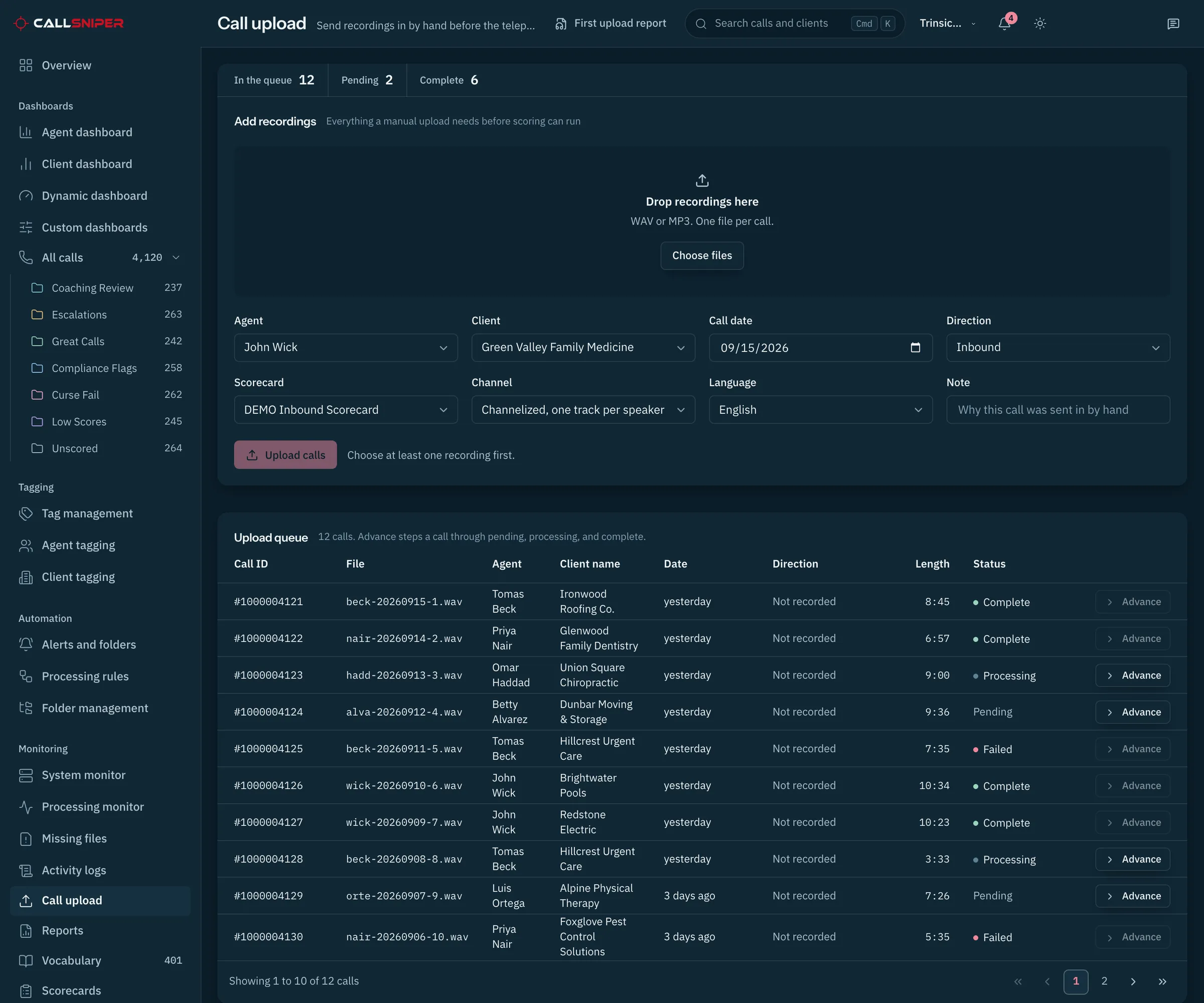
Recordings reach CallSniper in bulk, and a supervisor can send one call in by hand when it needs looking at now. Each file carries the agent, the client account, the date, and the scorecard it should be measured against. The queue shows where each file has reached.
Use the left and right arrow keys. The address bar holds the step you are on, so any step can be shared on its own.
Then run it on your own calls.
The tour uses a demo workspace. An evaluation uses your recordings, your scorecard, and your client accounts, and the same seven screens fill with your own calls.
Where to go next.
- The same workflow written out, stage by stage
- How a scorecard is built and assigned
- How recordings are handled before you share any
Bring a handful of recordings and the standards your reviewers already work to, and we will set the first scorecard up with you.
Schedule a demoAsk for a review of your own calls.
Send a few recordings and the rubric your team scores against, and see them come back transcribed, scored, and routed on these same screens.